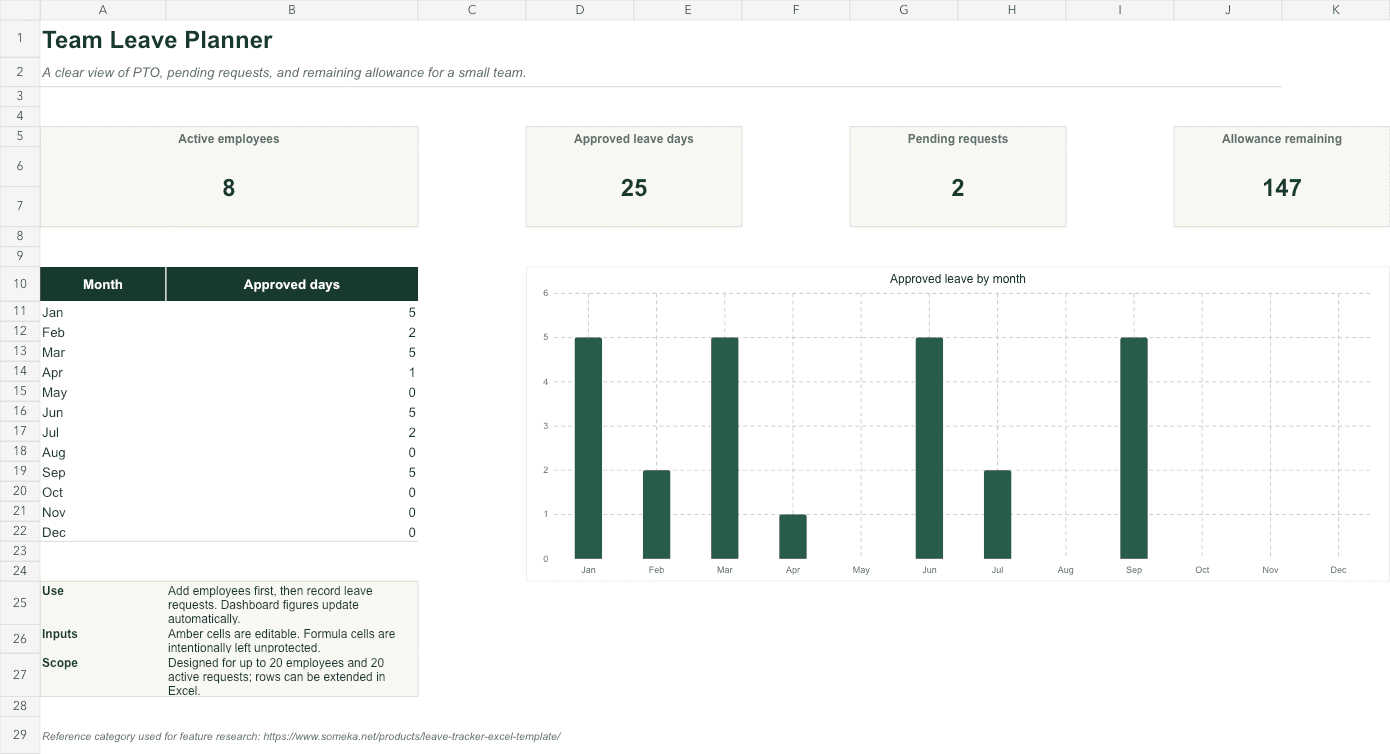
A PTO tracker has two jobs: make future absences visible and keep each employee's balance trustworthy. Problems begin when those jobs are mixed into one giant calendar full of manually colored cells.
A cleaner workbook separates people, leave records, policy settings, and summary views. The calendar becomes an output, not the database.
01
Write the policy rules down first
The spreadsheet cannot resolve an unclear policy. Decide which leave types are tracked, whether weekends and holidays count, who approves requests, and whether employees can carry unused days into the next period.
Put those choices on a visible Settings sheet. Avoid burying policy assumptions inside long formulas that only the workbook creator understands.
- Annual allowance and carryover rule
- Working week and holiday calendar
- Leave types and whether each affects balance
- Approval statuses and approver names
02
Separate employees from leave requests
Create an Employees table with one row per person and a Leave Log with one row per request. Join them with a stable employee ID rather than an employee name, because names can be duplicated or changed.
The log should record employee ID, leave type, start date, end date, calculated working days, status, and notes. Keep approval history outside the notes field if it must be audited.
=NETWORKDAYS([@[Start date]],[@[End date]],Holidays[Date])03
Calculate balances from approved records
A balance should be derived from the log, never typed over. Sum only the leave types that consume allowance and only the statuses your policy considers final. Pending requests can be shown as a separate commitment.
Add a reconciliation check: opening allowance minus approved leave should equal the displayed remaining balance. If it does not, make the exception visible instead of hiding it with IFERROR.
=SUMIFS(LeaveLog[Days],LeaveLog[Employee ID],[@[Employee ID]],LeaveLog[Status],"Approved")04
Design the dashboard for planning, not surveillance
Managers need upcoming absences, team overlap, requests awaiting a decision, and remaining allowances. They rarely need decorative charts about who takes the most leave.
Keep sensitive notes off the shared dashboard. The best leave view helps teams plan coverage while revealing only what colleagues need to know.
- Absences in the next 30 days
- Overlapping leave by team
- Pending approvals
- Low or negative balances
Skip the blank-sheet setup
Team Leave Planner
Use a ready-made leave log, employee directory, editable settings, and summary dashboard for a small team.FAQ
Common questions
What columns should a PTO tracker have?
At minimum: employee ID, employee name, leave type, start date, end date, working days, status, and approver. Keep allowance and team details in a separate employee table.
How do I exclude weekends and holidays in Excel?
Use NETWORKDAYS for a Monday–Friday workweek, or NETWORKDAYS.INTL for custom weekends, and pass a range containing company holiday dates.
Is Excel suitable for PTO tracking?
It works well for a small team with a clear owner and modest approval needs. Move to a dedicated HR system when access controls, audit history, payroll integration, or multi-country rules become essential.