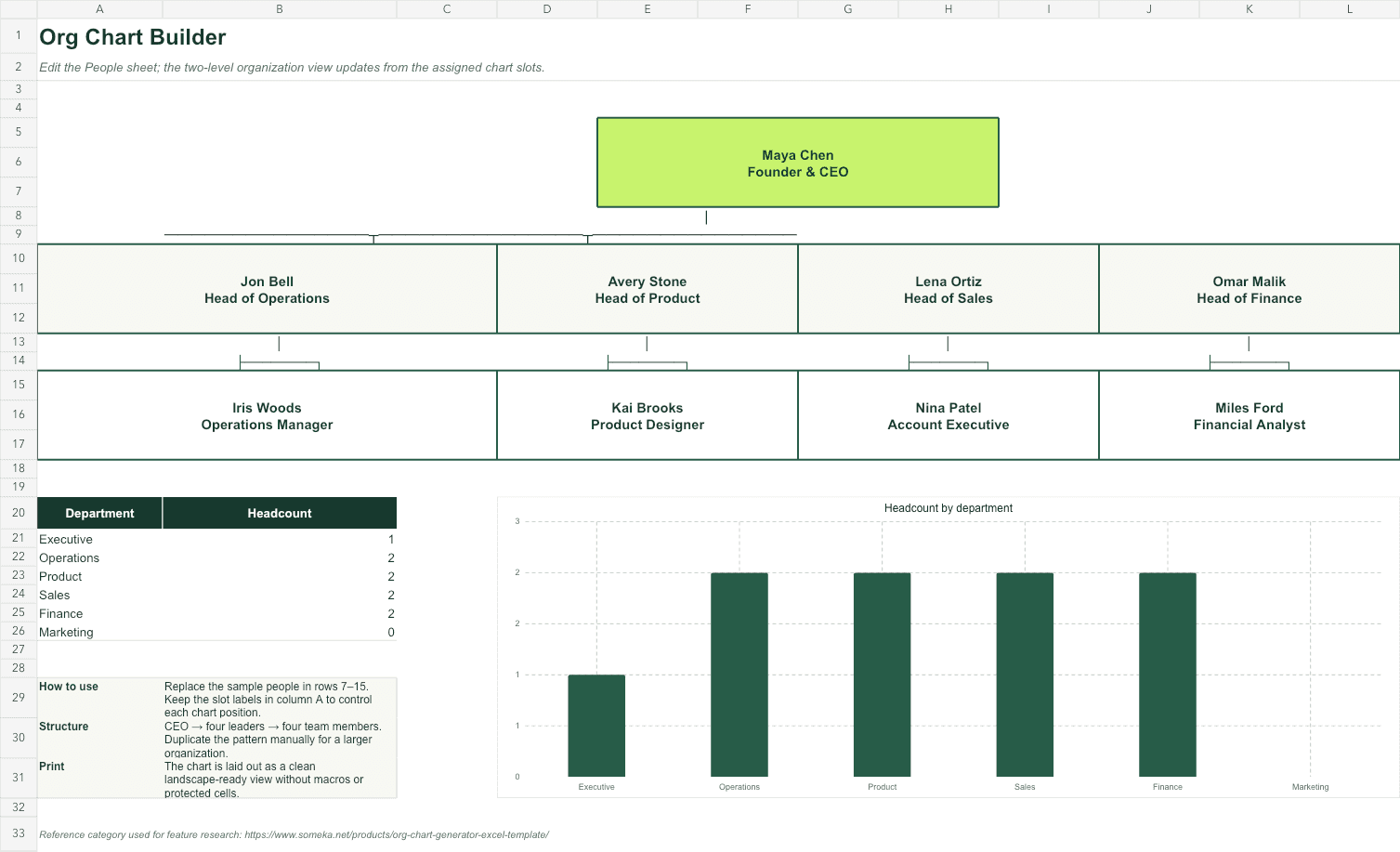
An organization chart is easy to draw once and surprisingly hard to maintain. The diagram gets copied into slides, job titles change, and soon nobody knows which version is current.
Treat the people directory as the source of truth and the visual chart as a view. That single decision makes the workbook far more useful.
01
Decide what the chart is for
A board-ready leadership chart, an onboarding directory, and a workforce-planning model need different detail. Choose the main audience before you choose the layout.
For most small teams, include name, role, department, manager, location, and status. Personal contact information should stay in a protected system, not a widely shared chart.
02
Create a directory with stable relationships
Use one row per person and assign each person a unique employee ID. Store the manager's ID in a Manager ID column. This parent-child relationship is more dependable than inferring reporting lines from row order or indentation.
Data validation helps keep department, location, and employment status consistent. Add a check for missing manager IDs so a typo does not silently detach someone from the hierarchy.
- Employee ID
- Name and role
- Manager ID
- Department
- Location
- Employment status
03
Choose the right amount of automation
Excel is excellent for small, printable organization views. A formula-linked layout can populate names and roles from assigned chart slots, while a department summary can count active employees automatically.
For a large or frequently reorganized company, generating a deeply nested visual in Excel becomes brittle. Keep the directory in a proper people system and use a specialized visualization tool when hierarchy depth or permissions matter.
=COUNTIFS(People[Department],A2,People[Status],"Active")04
Make change ownership explicit
Add a last-updated date and name the person responsible for changes. Review the directory monthly and immediately after hires, departures, or manager changes.
A restrained chart is easier to print and read. Show two or three levels on the main page, then use department views when more detail is needed.
Skip the blank-sheet setup
Org Chart Builder
Turn a clean people directory into a formula-linked two-level chart with department headcount and a landscape print layout.FAQ
Common questions
Can an org chart update automatically in Excel?
A small chart can pull names and roles from a structured directory with lookup formulas. Fully automatic layout for a large, changing hierarchy is better handled by a dedicated org-chart tool.
What data do I need for an organization chart?
Use employee ID, name, title, manager ID, department, location, and active status. Manager ID is the key field that defines the reporting relationship.
How often should an org chart be updated?
Update it whenever a reporting line changes and schedule a monthly check against your employee directory. Display the last-updated date on the chart.