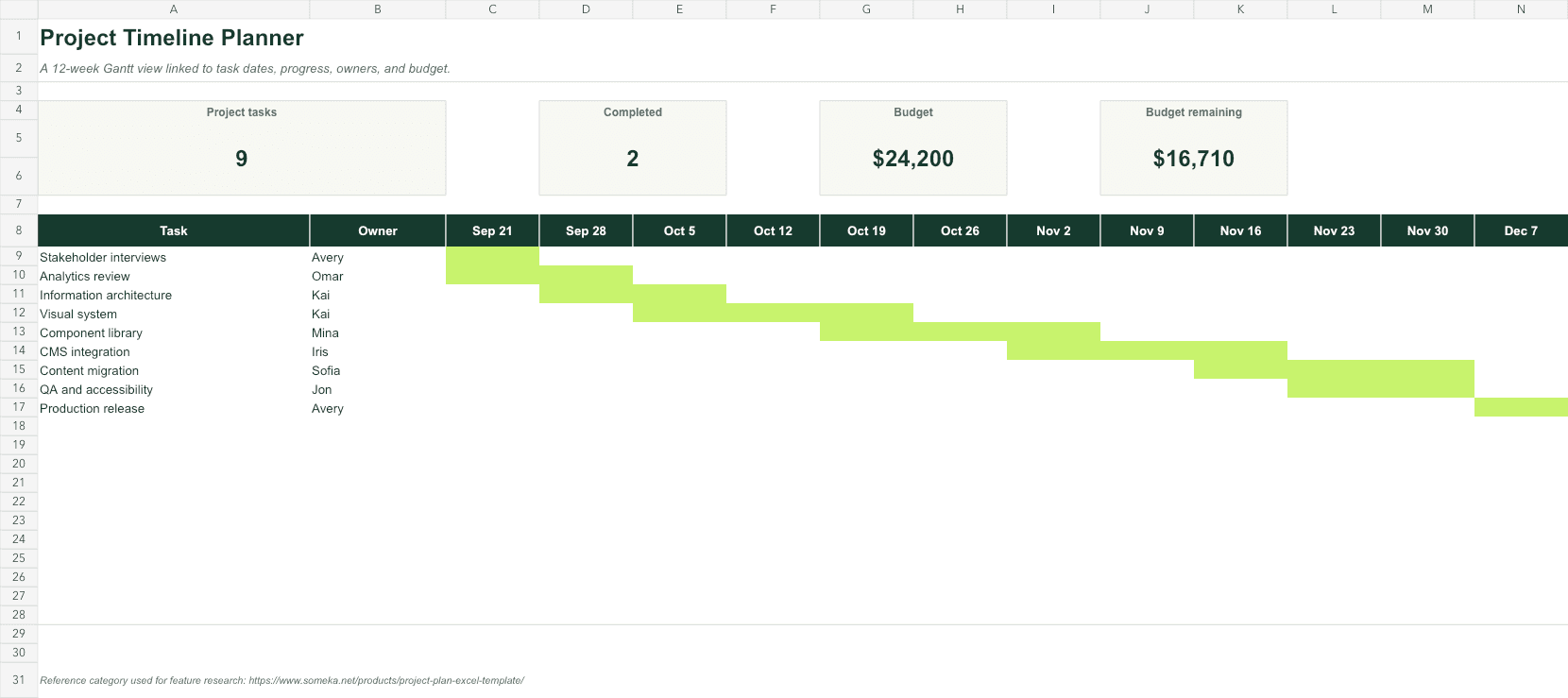
Most Excel project timelines become decoration. They look convincing on the day they are made, then drift away from the work because dates, owners, progress, and costs live in different places.
The fix is not a more elaborate chart. It is a small, dependable data model: one row per task, dates that drive the timeline, and a review habit that keeps the plan current.
01
Start with the questions the plan must answer
Before formatting anything, write down the decisions the workbook needs to support. A small team usually needs to know what is happening now, who owns the next move, what is late, and whether the remaining budget is enough.
If a column does not help answer one of those questions, leave it out of the first version. Simple plans survive weekly use; ambitious plans are often abandoned.
- What must finish this week?
- Which tasks are blocked or late?
- Who owns each deliverable?
- How much budget is committed and how much remains?
02
Build one clean task table
Use an Excel Table with one task per row. Give every task a short ID, phase, owner, start date, end date, status, percent complete, budget, and actual cost. Keep milestones as zero- or one-day rows instead of drawing them separately.
Dates should be real Excel dates, not text. Status and owner fields should use data validation lists. That small amount of structure prevents spelling variations from breaking filters and summaries.
- ID and phase for grouping
- Task and owner for accountability
- Start, end, and duration for timing
- Status and percent complete for progress
- Budget, actual, and variance for cost control
=[@[End date]]-[@[Start date]]+103
Let the dates draw the Gantt view
Place weekly or daily dates across the timeline header. Conditional formatting can then fill the cells that fall between each task's start and end dates. The result updates when the source dates change, so the chart and task list cannot quietly disagree.
Use one strong color for active work, a calm neutral for planned work, and a separate treatment for completed tasks. More colors rarely create more clarity.
=AND(H$8>=$E9,H$8<=$F9)04
Give the workbook a weekly operating rhythm
A timeline becomes a management tool when the team reviews it the same way each week. Filter to incomplete tasks, update dates before changing colors, and record blockers in the source row rather than in floating comments.
End the review by checking the next two weeks, not the whole quarter. That is where schedule conflicts can still be solved cheaply.
- Update actual progress and costs.
- Move dates only when the plan has genuinely changed.
- Name the next owner for every blocked task.
- Review near-term capacity and budget variance.
Skip the blank-sheet setup
Project Timeline Planner
Start with a formula-linked 12-week Gantt view, task ownership, progress controls, and budget tracking already in place.FAQ
Common questions
Can Excel make a project timeline automatically?
Yes. Store tasks and dates in a structured table, then use conditional formatting to shade the timeline cells that fall between each task's start and end dates.
Should I use days or weeks across the timeline?
Use days for short, execution-heavy plans and weeks for projects longer than roughly eight weeks. The right scale is the smallest one your team will actually maintain.
What is the minimum information each task needs?
A task name, owner, start date, end date, status, and percent complete are enough for a useful first version. Add budget fields only when the team will update actual costs.