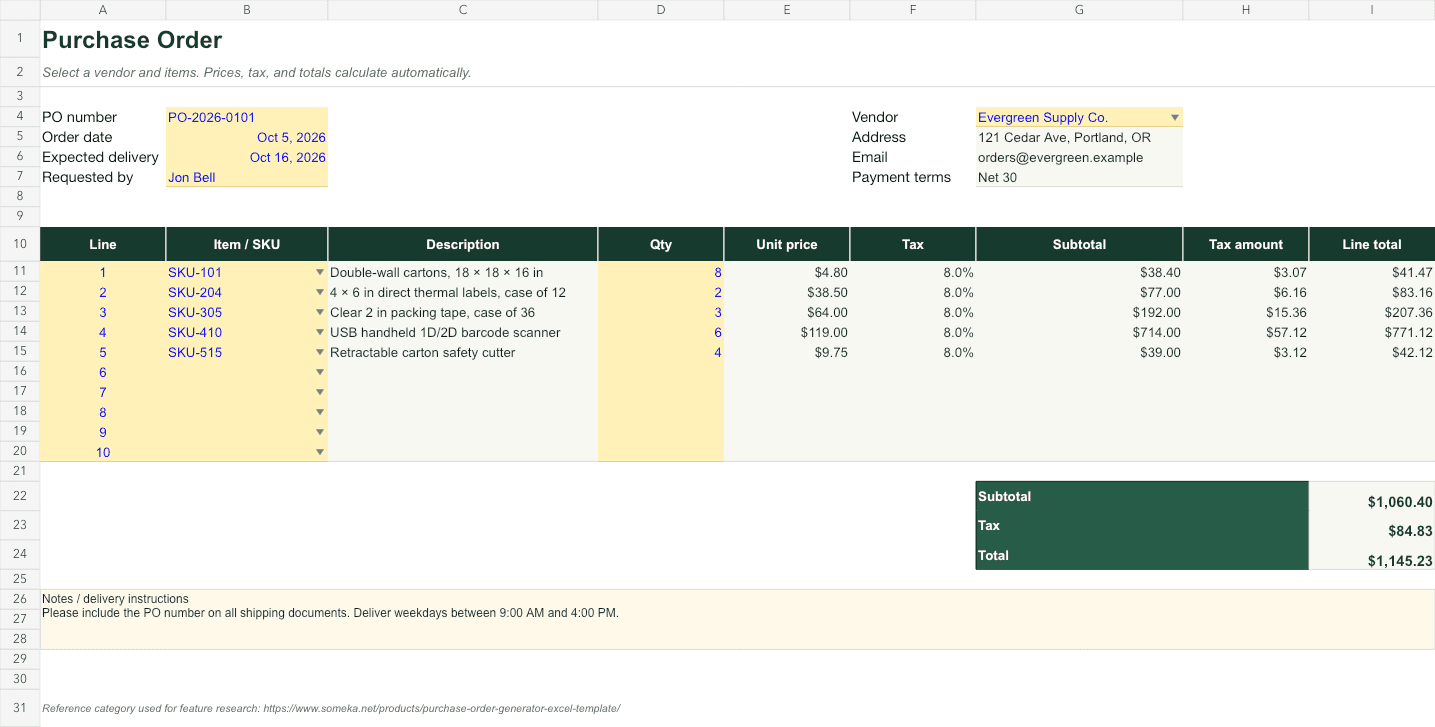
A purchase order should tell a vendor exactly what to deliver while giving your team a clear record of what was approved. A good workbook supports both jobs.
The most reliable approach separates reusable vendor and item data from the printable order, then keeps a register of every PO after it is issued.
01
Include the information that prevents disputes
Give every PO a unique number and include the order date, requester, vendor details, ship-to address, expected delivery date, payment terms, currency, and delivery instructions.
Each line should include an item or SKU, plain-language description, quantity, unit price, tax treatment, and line total. Make the grand total prominent and state whether freight is included.
02
Reuse vendor and item records
Store vendors and items on separate sheets as Excel Tables. Select them with data validation, then use lookups to populate addresses, terms, descriptions, and prices. This avoids retyping details on every order.
Prices change, so treat the item list as a default rather than a historical source. Once a PO is approved, preserve the price used on that order.
=XLOOKUP([@Item],Items[Item],Items[Unit price],"")03
Make the arithmetic inspectable
Calculate subtotal, tax, and total from the line items. Avoid rounding every intermediate calculation; instead, format the displayed result and apply your accounting policy at the final step.
Protect formula cells only when the team understands how to unprotect and maintain the workbook. Visual input cues are often more helpful than aggressive locking.
=[@Quantity]*[@[Unit price]]*(1+[@[Tax rate]])04
Track the order after it is sent
The printable PO is only the beginning. Add a register with PO number, vendor, requester, department, total, approval status, expected date, delivery status, and payment status.
That register answers the operational questions the document cannot: what is still open, what spend is committed, and which deliveries are late.
- Draft
- Awaiting approval
- Approved
- Partially received
- Received
- Closed
Skip the blank-sheet setup
Purchase Order Manager
Create print-ready POs from reusable vendor and item lists, then track approval, delivery, and payment in one register.FAQ
Common questions
What should a purchase order include?
Include a unique PO number, buyer and vendor details, dates, delivery address, payment terms, line items, quantities, prices, taxes, totals, and approval information.
Is a purchase order the same as an invoice?
No. The buyer issues a purchase order to authorize a purchase. The vendor later issues an invoice requesting payment for the goods or services supplied.
When is Excel no longer enough for purchase orders?
Move to a purchasing system when you need multi-step approvals, strict permissions, inventory integration, three-way matching, or a reliable audit trail across many users.